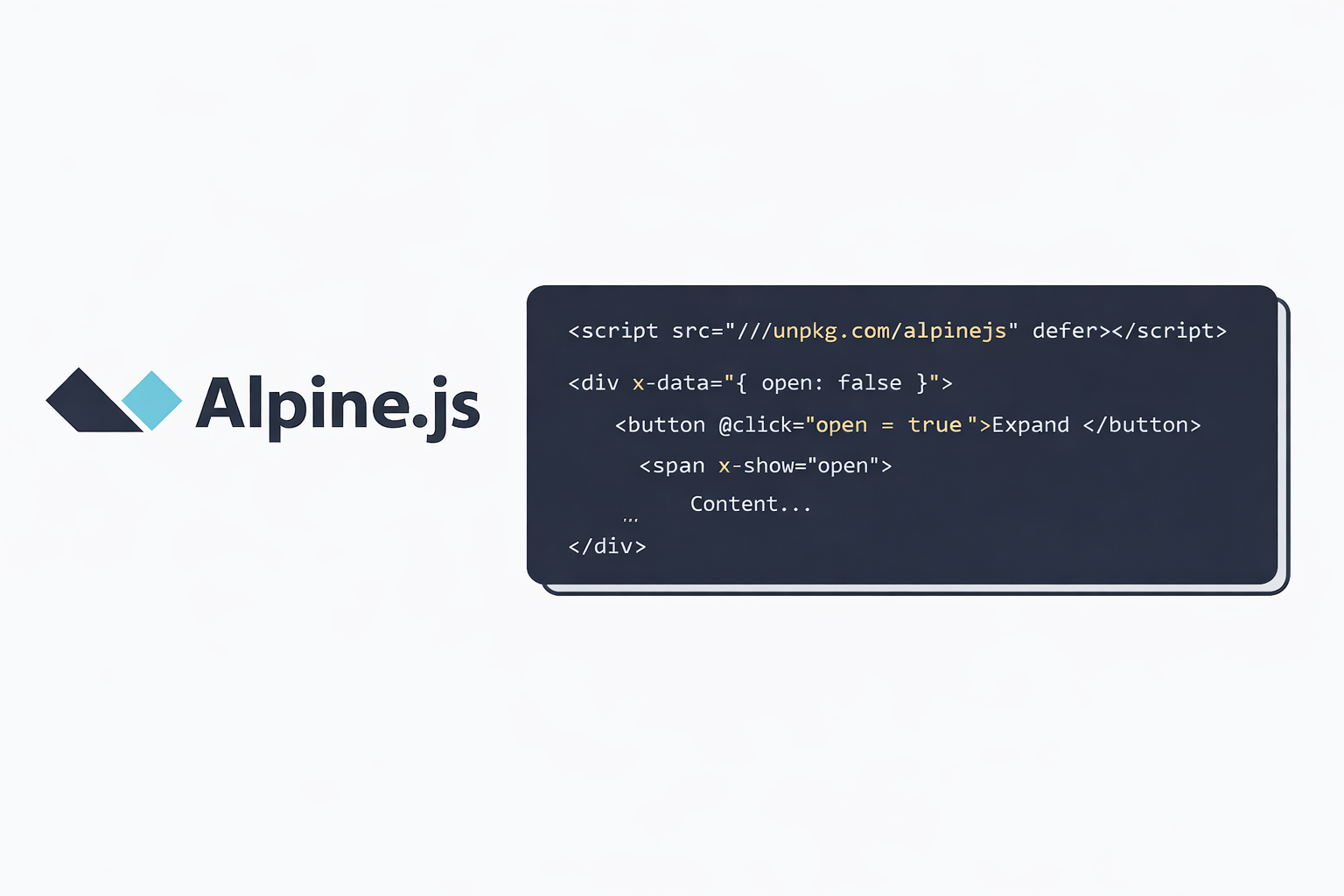
Alpine.js is one of the libraries that is quite popular among developers, especially those who are building websites but still want to use something lightweight, simple, and smooth.
One thing that recently caught my attention while using Alpine.js is a small flicker that appears when implementing a hide modal system while x-show is set to false.
For example, when I use Alpine to hide the language selection dropdown in the navigation menu, there is a brief flicker when switching from one navigation item to another.
This happens because the browser renders the HTML first before Alpine.js is fully initialized.
In this article, I want to share a few tips to help you prevent this issue. Follow the steps below to make sure the flicker completely disappears from your application.
1. Use the x-cloak Attribute
x-cloak is provided directly by Alpine.js to hide HTML elements before Alpine is fully initialized. Simply add the attribute to any element that uses x-show, for example:
<div x-show="open" x-cloak>
Then, add the following CSS to your global stylesheet:
[x-cloak] { display: none !important; }If you are using Laravel, you can place this inside app.css located in the resources/css directory.
2. Install Alpine.js via NPM Directly in Your Project
As we know, besides using the CDN version by placing the script link in the <head> of your HTML, you can also install Alpine.js directly via NPM in your project.
This approach ensures Alpine is properly bundled and initialized as part of your build process, reducing the chance of flickering before Alpine takes control.
To install Alpine via NPM, run the following command in your terminal:
npm install alpinejs
After installation, add the following code to resources/js/app.js:
import Alpine from 'alpinejs'

window.Alpine = Alpine
Alpine.start()
After applying these steps, the flicker on your website should be completely resolved.